Subcloak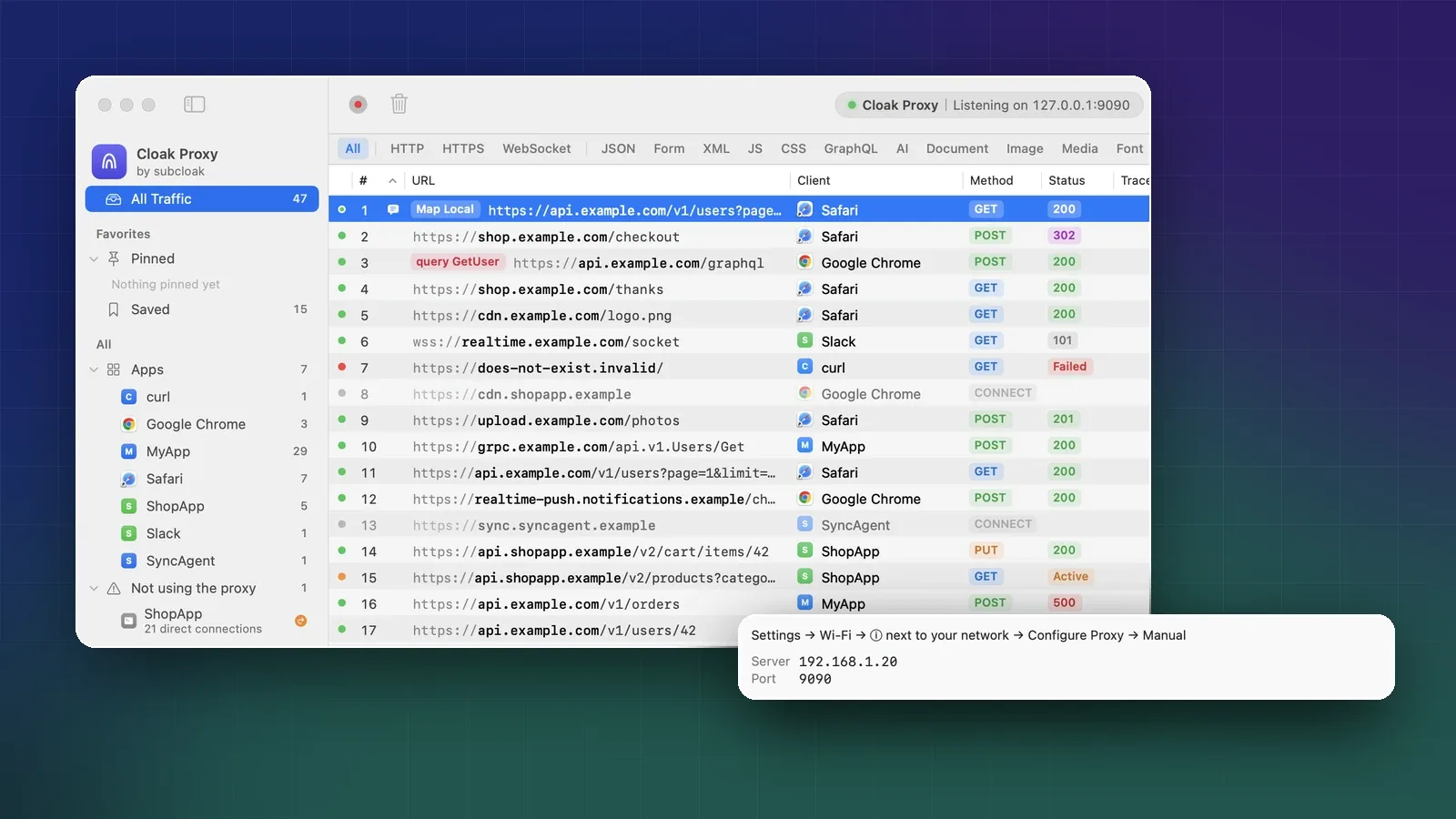
On this page
- What you need
- How a debugging proxy reads HTTPS
- The iOS Simulator: five minutes
- A real iPhone over Wi-Fi
- 1. Let the iPhone connect
- 2. Point the iPhone’s Wi-Fi at your Mac
- 3. Install the certificate profile
- 4. Turn on full trust (the step everyone misses)
- 5. Choose what to decrypt
- Read the requests
- When traffic doesn’t show up
- Certificate pinning
- Apps that ignore the proxy
- HTTP/3
- How this compares with Proxyman and Charles
- Clean up when you’re done
- Sources
- FAQ
Your app shows an empty screen, a spinner that never stops, or an error you can’t reproduce. The answer is almost always in the network calls: the URL it hit, the headers it sent, and the JSON that came back. This guide shows how to see those calls in full, for free, using a debugging proxy on your Mac.
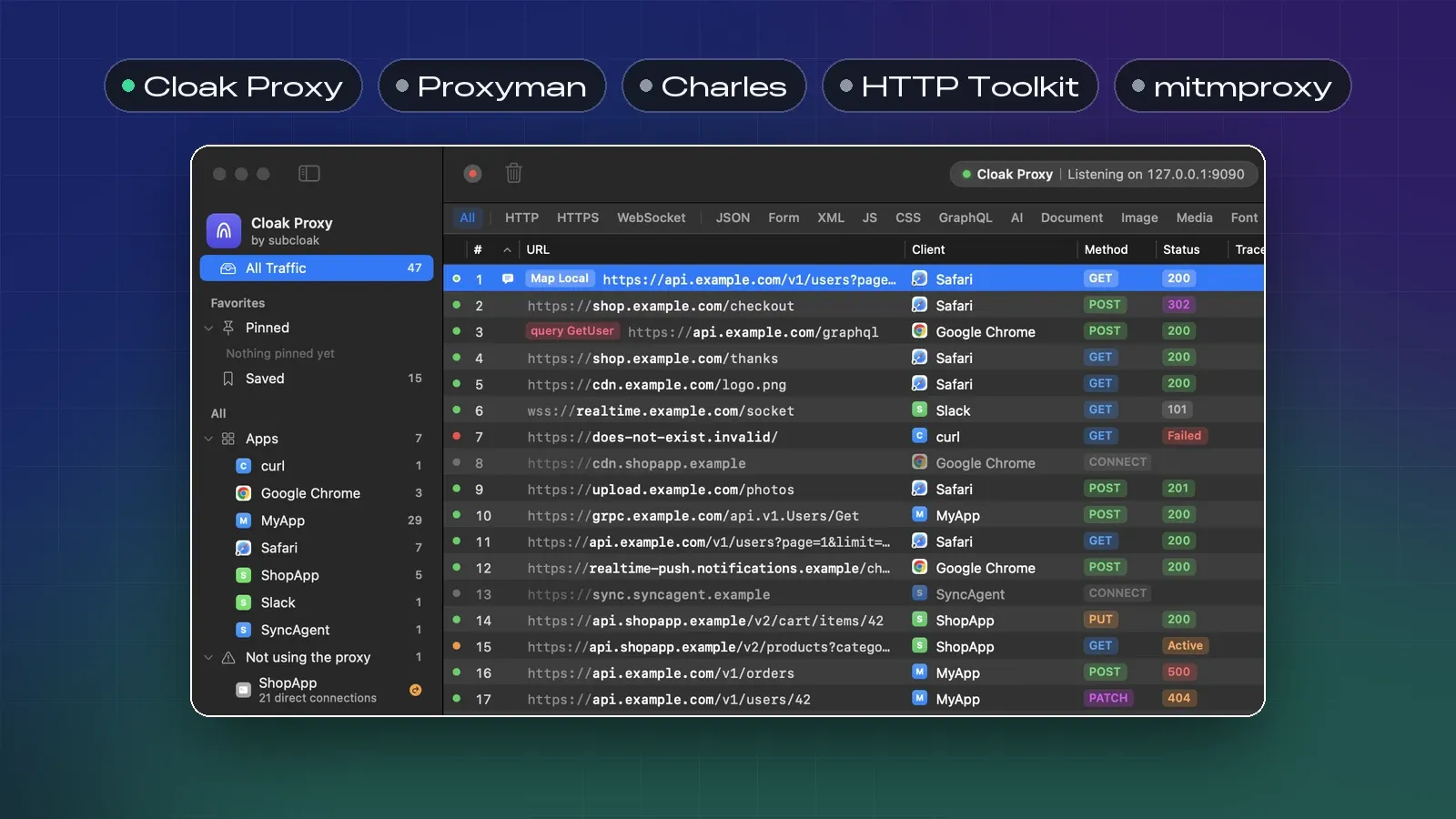
You’ll set it up twice: first for the iOS Simulator, which takes about five minutes, then for a real iPhone over Wi-Fi. Then you’ll read the requests, and learn what to do when some of them don’t show up. We use Cloak Proxy, our free Mac app, but the same steps apply to Proxyman, Charles and mitmproxy, and we compare them at the end.
What you need
- A Mac with macOS 14 Sonoma or later, and Cloak Proxy installed. It’s free, with no account, and notarized by Apple, so it opens like any other app.
- Xcode, for the Simulator.
- An iPhone or iPad on the same Wi-Fi network as the Mac, for the device part. Guest networks and some office networks stop devices from reaching each other, so use a network where they can.
How a debugging proxy reads HTTPS
An HTTPS request is encrypted between the app and the server. A proxy can only read it by sitting in the middle as two separate connections, and that only works if the app trusts the proxy’s certificate.
When you first open Cloak Proxy, it creates its own root certificate, Cloak Proxy CA, on your Mac. For each host you choose to decrypt, it signs a certificate for that host name on the fly. The app sees a certificate for api.example.com, checks who signed it, and connects only if it trusts Cloak Proxy CA. That’s why every setup below has a “trust the certificate” step, and why skipping it makes HTTPS fail.
Two more things to know before you start. Cloak Proxy decrypts nothing until you ask: by default HTTPS passes through as locked tunnels, and you choose hosts or apps in SSL Proxying. And your Mac must trust the certificate too: click Install & Trust… in the orange banner above the traffic list, then confirm with your password or Touch ID.
The iOS Simulator: five minutes
Simulators use your Mac’s network settings, so their requests go through Cloak Proxy whenever the macOS proxy is on. Each simulator has its own list of trusted certificates, so it needs the certificate installed once.
- Turn on the macOS proxy. Click macOS Proxy in the toolbar, or press ⇧ ⌘ P. The bottom bar turns green and reads macOS traffic on.
- Boot the simulator you want to use, from Xcode or the Simulator app.
- Install the certificate. Click Devices in Cloak Proxy’s toolbar, choose iOS Simulator in the sidebar, and click Install Certificate on All Booted Simulators. When it says Installed. Restart the app in the simulator., quit and reopen your app.
- Choose what to decrypt. Open Cloak Proxy › Settings… › SSL Proxying, type your API’s host, such as
api.example.comor*.example.com, and click Add. - Use your app. Its requests appear in the traffic list with full headers and bodies.
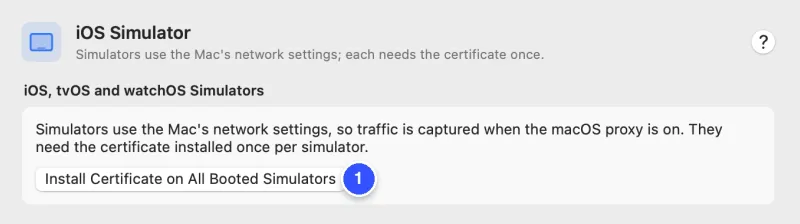
The button runs Apple’s simctl tool, which comes with Xcode. You can run the same command yourself, for example to target one simulator by its UDID:
xcrun simctl list devices
xcrun simctl keychain booted add-root-cert "$HOME/Library/Application Support/CloakProxy/cloak-proxy-ca.pem"
The certificate stays until you erase the simulator. A new simulator, or one reset with Device › Erase All Content and Settings, needs it again.
If Cloak Proxy says simctl isn’t installed, install Xcode from the App Store, then point the command-line tools at it with sudo xcode-select -s /Applications/Xcode.app.
A real iPhone over Wi-Fi
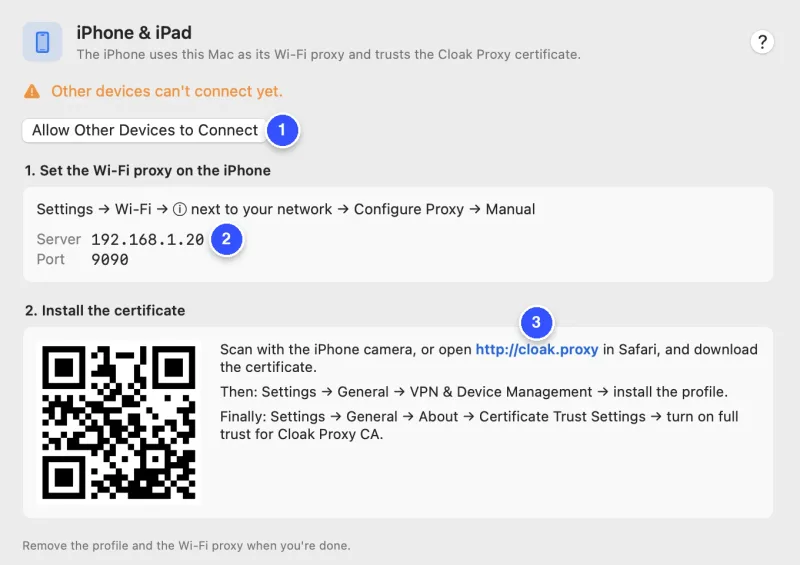
A real device tells you things a simulator can’t: the cellular-like latency of your Wi-Fi, push-driven refreshes, code paths that only run on hardware. The setup takes five steps. Cloak Proxy’s iPhone & iPad page shows the values you need as you go.
1. Let the iPhone connect
Out of the box, Cloak Proxy only accepts connections from your own Mac. Click Devices in the toolbar, choose iPhone & iPad, and click Allow Other Devices to Connect. The proxy restarts and the warning Other devices can’t connect yet. goes away.
While this is on, any device on your network could use the proxy. To accept only your phone, add its address to Allowed devices in Settings › Network, and turn the switch off when you finish.
2. Point the iPhone’s Wi-Fi at your Mac
On the iPhone:
- Open Settings › Wi-Fi and tap the ⓘ button next to your network.
- Scroll down, tap Configure Proxy, and choose Manual.
- Enter the Server and Port from Cloak Proxy, for example
192.168.1.20and9090. Leave Authentication off, and tap Save.
Open any web page on the phone. Its requests appear in Cloak Proxy, and the device appears in the sidebar under Devices.
3. Install the certificate profile
Scan the QR code on the setup page with the iPhone’s camera, or open Safari and go to http://cloak.proxy. Tap Install on iPhone or iPad, then Allow when Safari asks to download a configuration profile.
Now open Settings. Near the top you’ll see Profile Downloaded. Tap it, tap Install, enter your passcode and confirm. Don’t wait too long: Apple deletes a downloaded profile that isn’t installed within eight minutes.
4. Turn on full trust (the step everyone misses)
Open Settings › General › About › Certificate Trust Settings and turn on the switch for Cloak Proxy CA under Enable full trust for root certificates. Tap Continue.
Without this step, iOS keeps the profile but apps still refuse the connection, and HTTPS requests fail. If Cloak Proxy notices a device refusing its certificate three times in two minutes, it stops decrypting for that device and shows a banner saying the device doesn’t trust Cloak Proxy’s certificate, with a Set Up the Certificate… button that takes you back here.
5. Choose what to decrypt
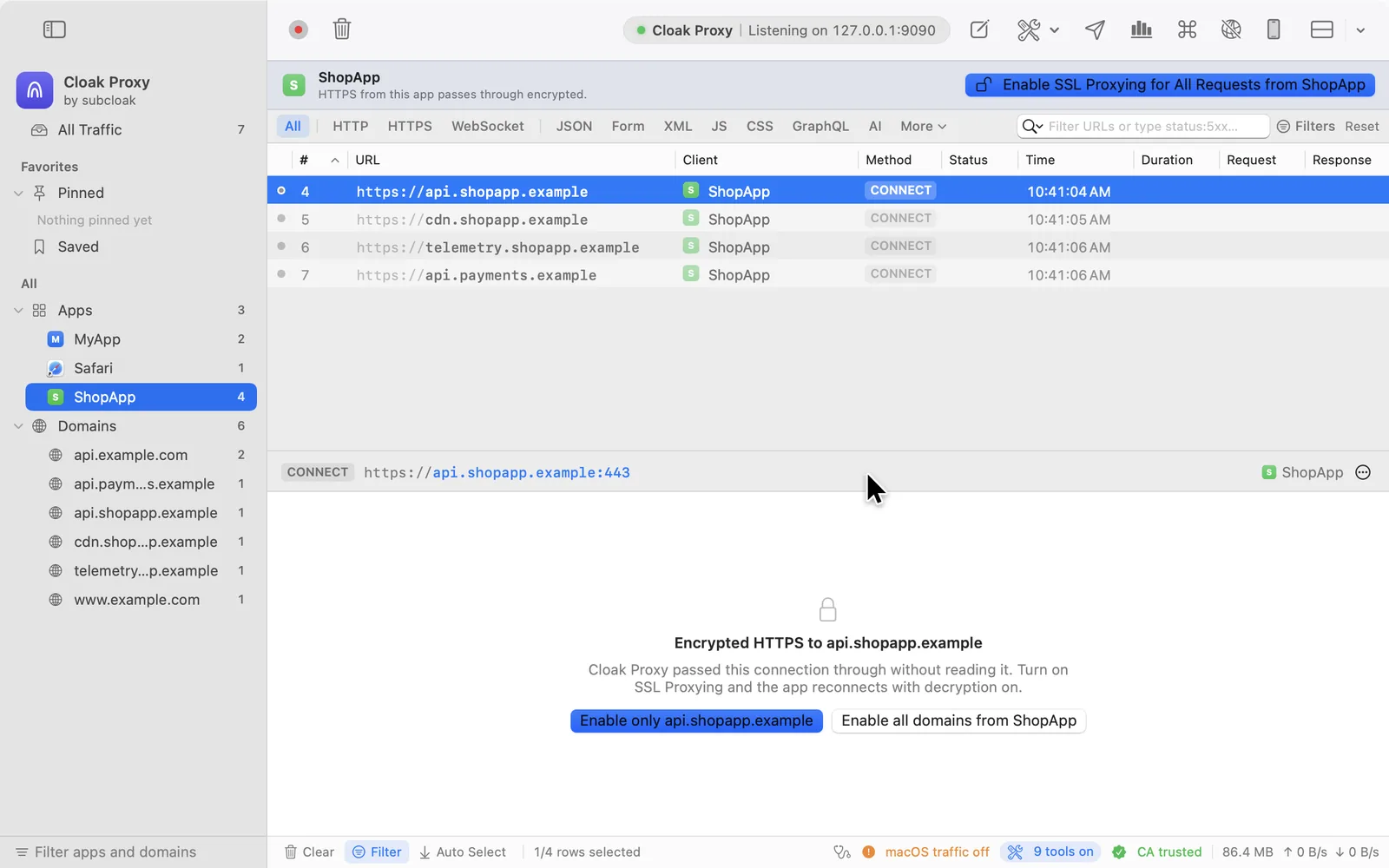
Requests from the phone first appear as locked CONNECT rows: encrypted tunnels that Cloak Proxy passed through. Click one, and the inspector offers to decrypt it.
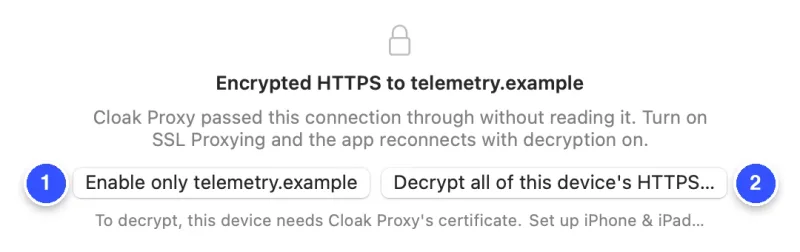
Enable only decrypts that one host, which is usually what you want. Decrypt all of this device’s HTTPS… covers every host, including other apps’ traffic, so use it for short sessions. A few Apple services, such as push notifications and Apple Account sign-in, only accept Apple’s own certificates, so Cloak Proxy always passes them through untouched.
Read the requests
Now use the feature you’re debugging and watch the list fill. A few habits make it faster.
Find your app. A Wi-Fi proxy can’t see which app opened a connection, so Cloak Proxy names requests from the User-Agent header. Most iOS apps send something like ShopApp/4.2 CFNetwork/1490 Darwin/23.2.0, which shows as ShopApp under your device in the sidebar. Click it to see only that app.
Filter with a query. The filter bar takes typed conditions, so you can narrow a busy session in one line:
app:ShopApp status:>=400
host:api.example.com dur:>1s
status:5xx -host:cdn.*
Read one request. Select a row. The request side has Header, Query, Body, Cookies, Auth (a decoded JWT or Basic credentials), Raw and Code tabs; the response side shows the body as a tree, pretty-printed, raw or hex. The Summary tab has timing, sizes and the TLS version.
Reproduce it. In the ••• menu at the right of the inspector’s summary bar, choose Copy as cURL, paste it into Terminal, and you can replay the exact call without the app. Then compare what the server says with what the app shows.
When traffic doesn’t show up
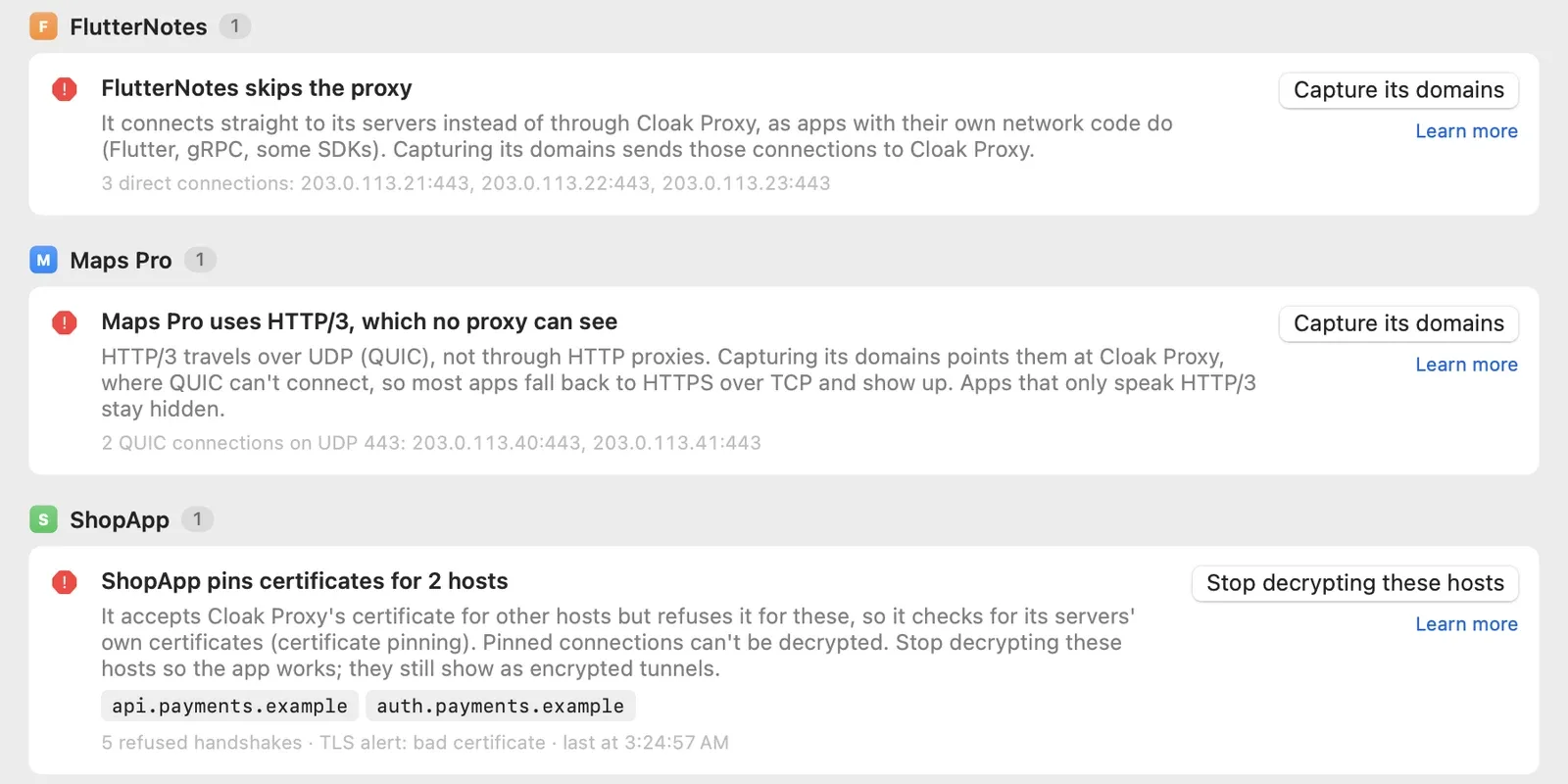
Most “nothing appears” problems have one of a few causes. Cloak Proxy’s Doctor (Tools › Doctor…, or the stethoscope in the bottom bar) checks them for you every 20 seconds and explains each problem per app or device, with the evidence and a button that fixes it.
| What you see | Likely cause | What to do |
|---|---|---|
| The phone can’t load anything | Proxy not reachable | Check Cloak Proxy is running, other devices are allowed, and the Server and Port match. |
Requests show as CONNECT tunnels |
Host not decrypted | Add it in SSL Proxying, or click Enable only on the row. |
| HTTPS fails with a certificate error | Full trust is off, or pinning | Turn on full trust; if it persists for some hosts, see pinning below. |
| One app shows nothing at all | It ignores the proxy, or uses HTTP/3 | See below. |
Certificate pinning
Some apps, especially banking, payment and security SDKs, pin their certificates: they accept only the certificate or key they shipped with. No proxy can decrypt a pinned connection without changing the app. When an app refuses Cloak Proxy’s certificate for the same host at least twice while accepting it elsewhere, the Doctor reports pins certificates for those hosts. Stop decrypting these hosts lets the app work again, with those connections shown as tunnels.
If it’s your app, turn pinning off in debug builds. If it isn’t your app, stop there.
Apps that ignore the proxy
The Wi-Fi proxy is a setting apps are expected to follow. Apple’s URLSession follows it; code with its own network stack may not. The most common case is Flutter: Dart’s HttpClient ignores the system proxy on every platform. For a Flutter app you build, open Proxy › Device & Runtime Setup…, choose Flutter, save the small Dart file it gives you into your project, and run with the proxy’s address, for example flutter run --dart-define=CLOAK_PROXY=192.168.1.20:9090. The override only runs in debug builds.
For a native iOS app you build, there’s another route: the in-app SDK, CloakProxyKit, sends your app’s URLSession requests straight to Cloak Proxy with no Wi-Fi proxy or certificate, and works even if the app pins. It only observes, so breakpoints and mocks don’t apply.
On the Mac itself, Cloak Proxy goes further: it lists apps with direct internet connections under Not using the proxy, and Capture its domains answers their DNS lookups so their connections come to it anyway.
HTTP/3
HTTP/3 runs over QUIC, which uses UDP. Proxies like this one carry TCP connections, so no HTTP proxy can see HTTP/3 requests. Apple’s URLSession supports HTTP/3, but most apps don’t use it while a proxy is set. Apps with their own QUIC code can. For Mac apps, the Doctor spots UDP connections to port 443 and reports uses HTTP/3, which no proxy can see; capturing the app’s domains usually makes it fall back to HTTPS over TCP within a moment. If a request’s inspector shows that the server offered HTTP/3 and the app then went quiet, this is a likely reason.
How this compares with Proxyman and Charles
All three tools do the core job well. The differences are price, platforms and what’s free.
| Cloak Proxy | Proxyman | Charles | |
|---|---|---|---|
| Price | Free, no paid tier | Paid licenses from $89; free trial with limits | $50 per license, 30-day trial |
| Mac app | Native Swift | Native Swift | Java |
| Other platforms | Linux beta | Windows, Linux, iOS and Android apps | Windows, Linux, iOS app |
| Simulator certificate | One click | One click | One menu item |
Proxyman’s device setup is nearly identical: a manual Wi-Fi proxy, a certificate page at http://proxy.man/ssl, then full trust in Certificate Trust Settings. Its tools for changing traffic, such as breakpoints, Map Local and scripting, are limited in the free trial and fully available with a license. Charles uses chls.pro/ssl on the device and Help › SSL Proxying › Install Charles Root Certificate in iOS Simulators.
Pick Proxyman or Charles if you need Windows, vendor support, or want to capture on the phone itself without a Mac: both sell iOS apps for that. Pick Cloak Proxy if you want everything free, on a Mac. Our full comparison has more detail and sources.
Clean up when you’re done
- On the iPhone, open Settings › Wi-Fi, tap ⓘ, tap Configure Proxy, choose Off and tap Save. Do this before you quit Cloak Proxy or leave the network, or the phone can’t reach the internet on that Wi-Fi.
- Remove the profile: Settings › General › VPN & Device Management, tap Cloak Proxy CA, then Remove Profile.
- On the Mac, turn off Allow other devices to connect in Settings › General and click Apply & Restart Proxy. Press ⇧ ⌘ P to give the macOS proxy back.
Next, try mocking an API response in the Simulator to test the screens you just debugged, without touching your backend.
Sources
- Apple: Trust manually installed certificate profiles in iOS, iPadOS and visionOS (Certificate Trust Settings) and Install a configuration profile (Profile Downloaded, the eight-minute limit).
- Apple: URLSession (HTTP/3 support and system proxy settings).
- IETF: RFC 9298, and MDN on CONNECT: classic proxy tunnels carry TCP, not UDP.
- Proxyman: iOS device setup, iOS Simulator setup and pricing.
- Charles: SSL certificates and pricing.
- Android: Network security configuration.
- Cloak Proxy docs: iPhone and iPad, iOS Simulator, SSL Proxying and Doctor.
Checked on 19 October 2026.
FAQ
Do I need to jailbreak the iPhone?
No. A Wi-Fi proxy setting and a trusted certificate profile are standard iOS features. Both can be removed in a minute when you're done.
Is it safe to install a proxy's root certificate on my phone?
It's safe on your own test devices if you look after it. Cloak Proxy creates its certificate and private key on your Mac, and the key never leaves it. Anyone with that key could decrypt traffic from devices that trust it, so don't share it, and remove the profile when you finish.
Why does my app fail only while the proxy is on?
Usually certificate pinning: the app accepts only its own server's certificate. Cloak Proxy's Doctor names the pinned hosts and can stop decrypting them so the app works again. To read that traffic, turn pinning off in a debug build of your own app.
Can I see the traffic without a Mac?
Not with Cloak Proxy today: it runs on macOS, with a Linux beta. Charles and Proxyman both sell iOS apps that capture on the phone itself.
Does this work for Android apps too?
Yes, with one extra step. Android apps that target API 24 or later don't trust user-installed certificates unless the app's network security config allows it, usually only in debug builds. See Android setup.