How to · Cloak Proxy
Simulate a slow network for one API.
Network Conditions makes matching requests behave as if they went over a slower or less reliable network: added latency, limited upload and download speed, and dropped requests. Make a rule from any request and pick a profile such as 3G, so you see loading states, timeouts and retries on a fast connection.
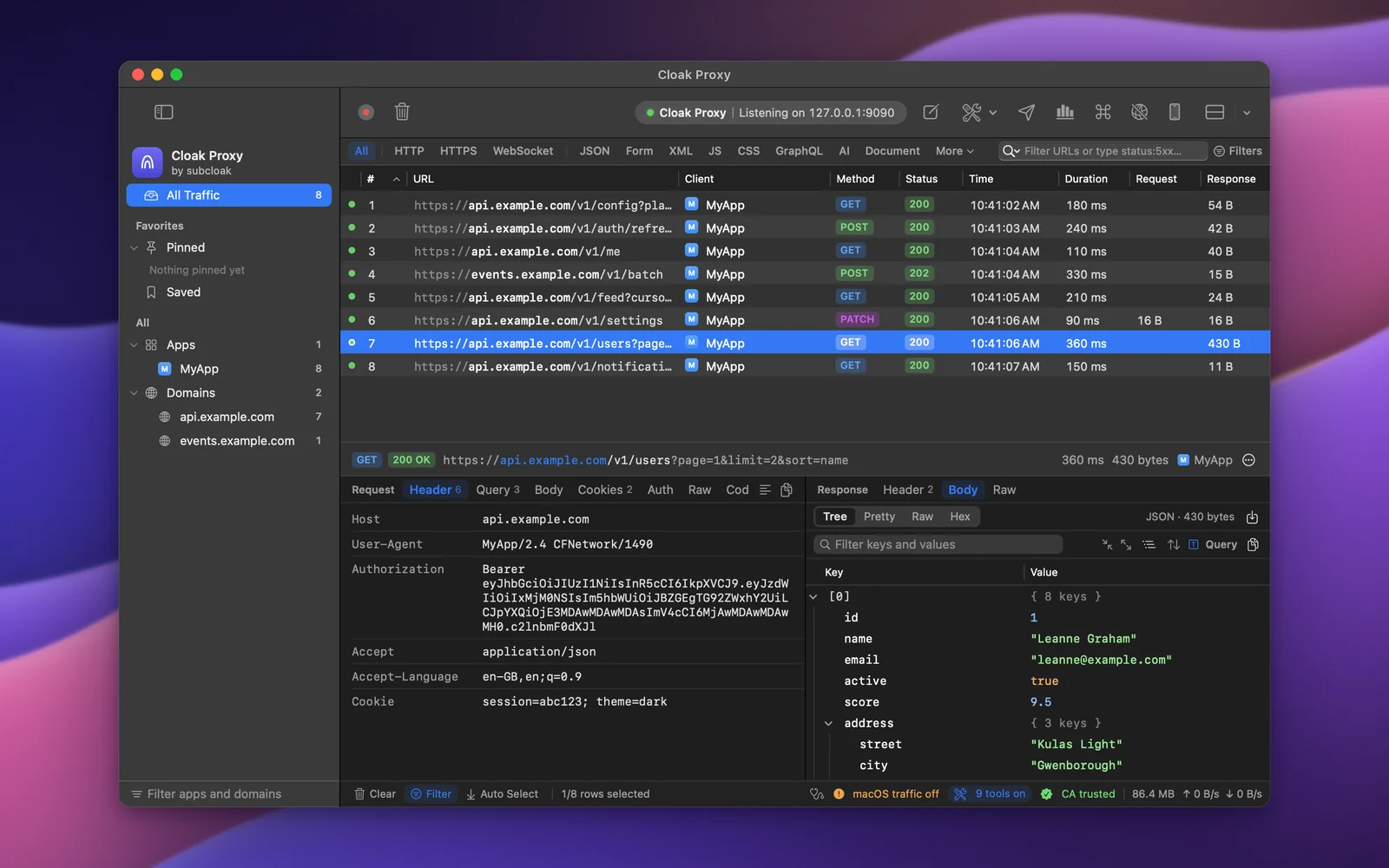
Step by step.
Install Cloak Proxy and trust its certificate
Download Cloak Proxy (free, no account) and open it. In the orange banner, click Install & Trust… and confirm with your Mac password. The certificate is made on your Mac and is unique to your install.
Make a rule from a request
Right-click a request from the host you want to slow down and choose Tools › Network Conditions…. Cloak Proxy makes a rule for every request to that host, picks 3G and turns Network Conditions on. To start from scratch, press ⌥ ⌘ T and click +.
Pick a profile
Choose from the Profile menu (100% Loss, Very Bad Network, Edge, 3G, DSL, LTE or Wi‑Fi) or type your own latency, download and upload speed and packet loss.
Use your app
Slowed requests show a
Network Conditionsbadge, and their duration includes the added delay.
Every option, screenshot and error message is in the docs:Network Conditions, Failure Scenarios.
FAQ
If something doesn't show up.
Something else? Email hello@subcloak.com or book a call.
Slow down everything
Use a matcher of * in Wildcard mode.
What 3G means here
300 ms of added latency, 780 kbps down and 330 kbps up, with no packet loss. Half the latency is added before the request is sent and half before the response arrives.
Time-outs and dropped connections
For a request that hangs, resets or arrives in pieces, use Failure Scenarios.
Try it on your own traffic.
Free for life, macOS 14 Sonoma or later, Apple silicon or Intel; Linux in beta. No account, no sign-up.